

How It Works
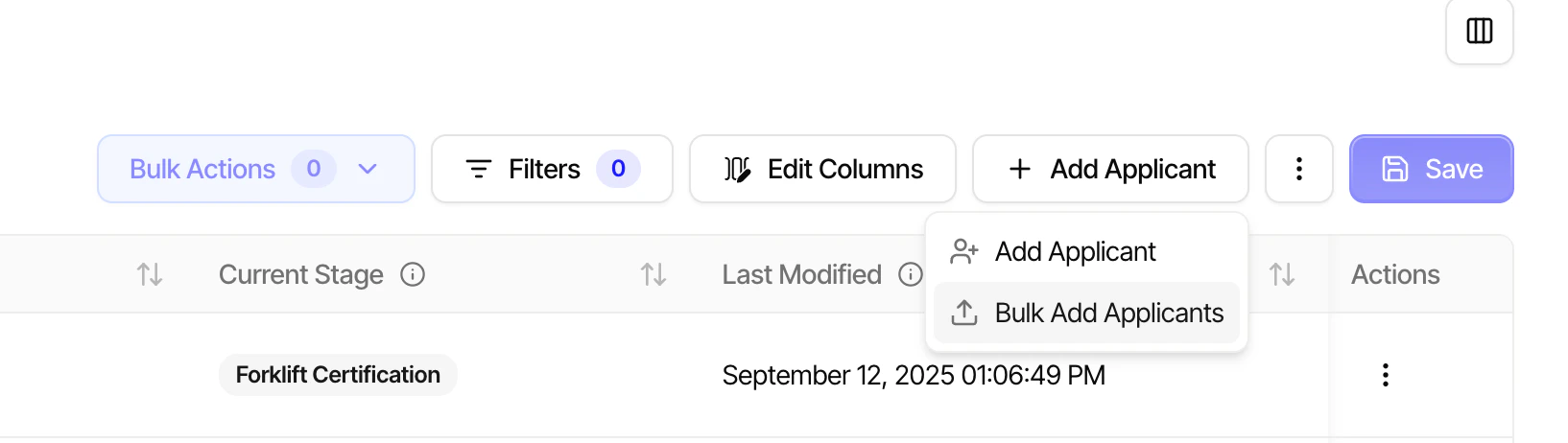
- Navigate to the applications list in your hiring flow
- Click Add Applicant and select Bulk Add Applicants
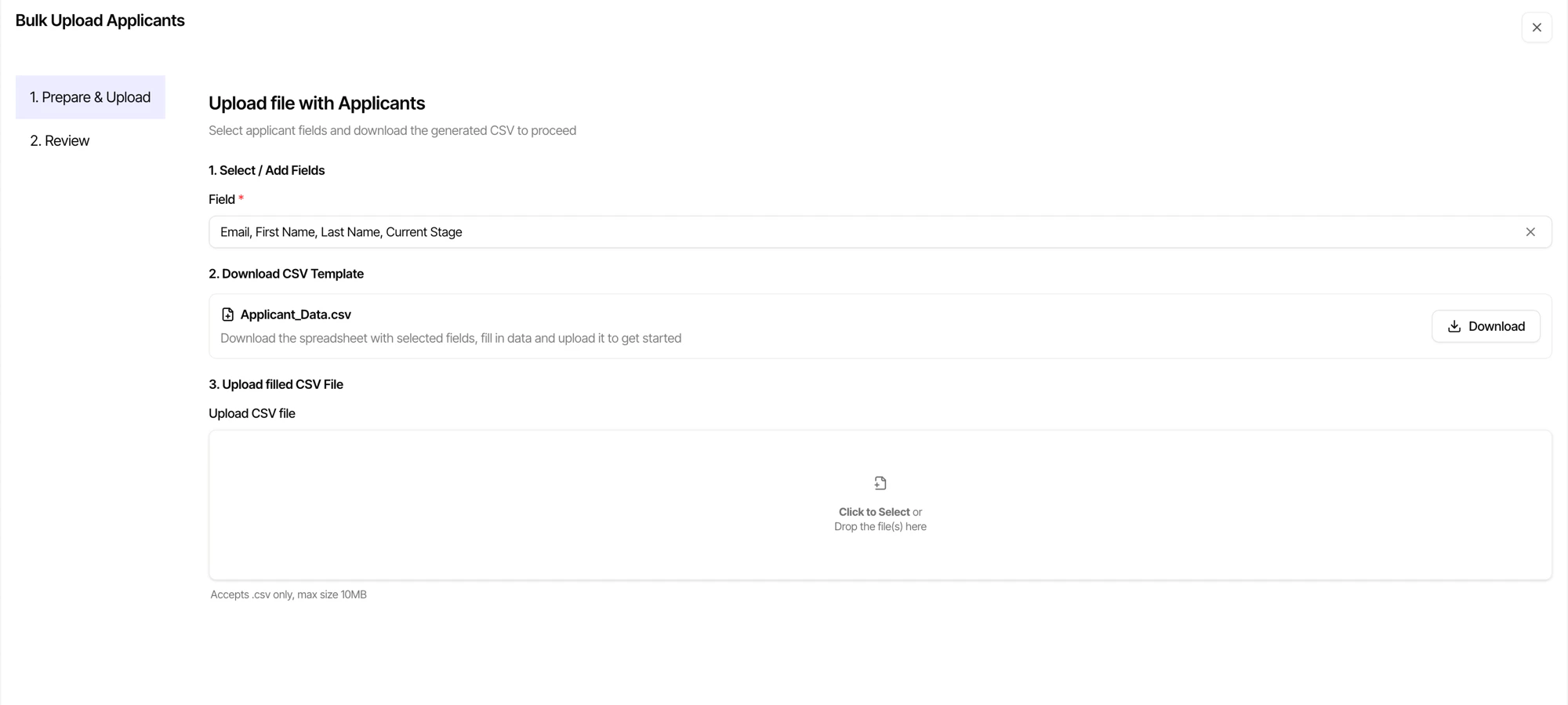
- Select the fields you want to include, then download the CSV template
- Fill in the CSV with candidate data and upload it
- Review and confirm the import
CSV Format
Each row in the CSV represents one application. Columns should include candidate data that maps to fields in your hiring flow form — for example:
Any additional columns can be mapped to custom form fields during the import step.
Tips
- Check for duplicates — If the hiring flow has uniqueness rules configured, duplicate entries will be skipped
- Required fields — Make sure your CSV includes all mandatory fields to avoid import errors
- File format — Use UTF-8 encoded CSV files for best compatibility