

Creating an Automation
- Navigate to Automations from the sidebar
- Click New Automation
- Give the automation a name and optional description
Configuring a Trigger
Every automation needs exactly one trigger — the event that starts execution.
See Triggers for detailed configuration options for each type.
Adding Actions
Actions define what happens when the trigger fires. Add them in sequence — they execute top to bottom.- Click Add Action below the trigger
- Select the action type (see Actions for the full list)
- Configure the action parameters
Chaining Multiple Actions
Actions execute in order. Each action can use data from the trigger event and from preceding actions. Common patterns:- Notify then update — Send an email or SMS, then move the application to the next stage
- Verify then branch — Run a compliance check, then use a decision rule to route based on the result
- Collect then process — Extract document data, then update form fields with the extracted values
- Chain automations — Use the “Run Automation” action to trigger another automation with the same context
Adding a Compliance Rule
Compliance rules act as a gate between the trigger and actions. When configured, the automation only executes its actions if the compliance rule evaluates to true.- Click Add Rule on the automation
- Build a condition tree using AND/OR groups
- Define conditions based on field values, stages, dates, or custom logic
Using Variables
Automations support dynamic variables in action templates (emails, SMS, Slack messages, webhooks). Variables are resolved at execution time from the candidate or worker record, often through Object Graph paths. Common variable sources:- Application fields — Name, email, phone, stage, custom fields
- Contract fields — Worker details, employment data
- Trigger data — The specific change or event that fired the trigger
- Input variables — Custom inputs defined on the automation (useful for manual triggers)
Activation & Testing
Testing Before Activation
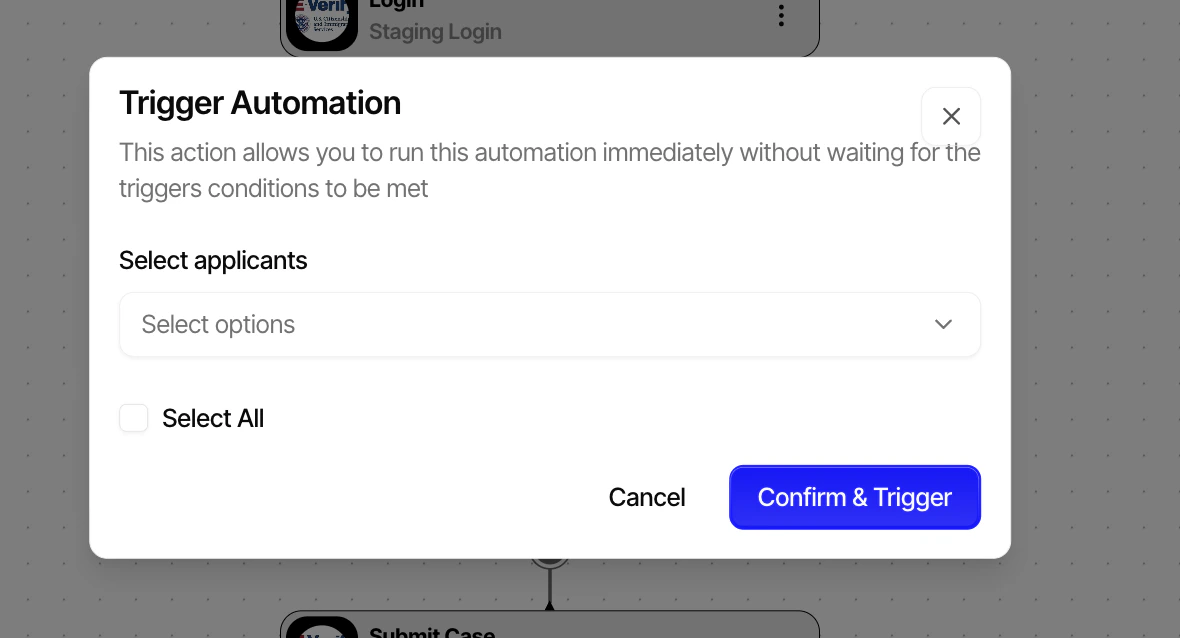
- Use Manual Trigger to test with specific records
- For schedule-based automations, use Dry Run to preview which records would be affected
- Check execution history for errors or unexpected results
Activating
Toggle the Active switch to enable the automation. Once active:- On Change triggers fire in real-time
- Schedule triggers create a recurring schedule via the workflow engine
- Webhook triggers generate a unique URL ready to receive requests
[!WARNING] Deactivating an automation stops new executions but does not cancel in-progress runs.
Execution History
Every automation run creates an execution record with:- Status — Success, failure, skipped, or cancelled
- Timing — When it started and how long it took
- Trigger data — What event caused the execution
- Action results — Outcome of each action in the sequence
- Error details — If any action failed, the error message and context
Best Practices
-
Start Simple - Begin with a single trigger and one or two actions. Add complexity incrementally.
- Use Compliance Rules - Add a compliance rule to prevent the automation from running on records that don’t match your criteria.
- Enable Failure Alerts - Keep failure notifications enabled and configure a Slack channel for alerts.
- Name Clearly - Use descriptive names that indicate the trigger event and the main action (e.g., “Stage → Interview: Send Calendar Link”).